

Official Release from Figma
Guide to the Dev Mode MCP Server
Official Release from Figma
Guide to the Dev Mode MCP Server
The Model Context Protocol (MCP) is an open-source standard that is rapidly changing how AI tools and design applications, such as Figma, work together. Think of it as a universal connector that allows AI assistants to understand and interact with your designs on a much deeper level.
This guide explains what MCP is, why it matters to designers, and how you can utilize it to streamline your workflow.
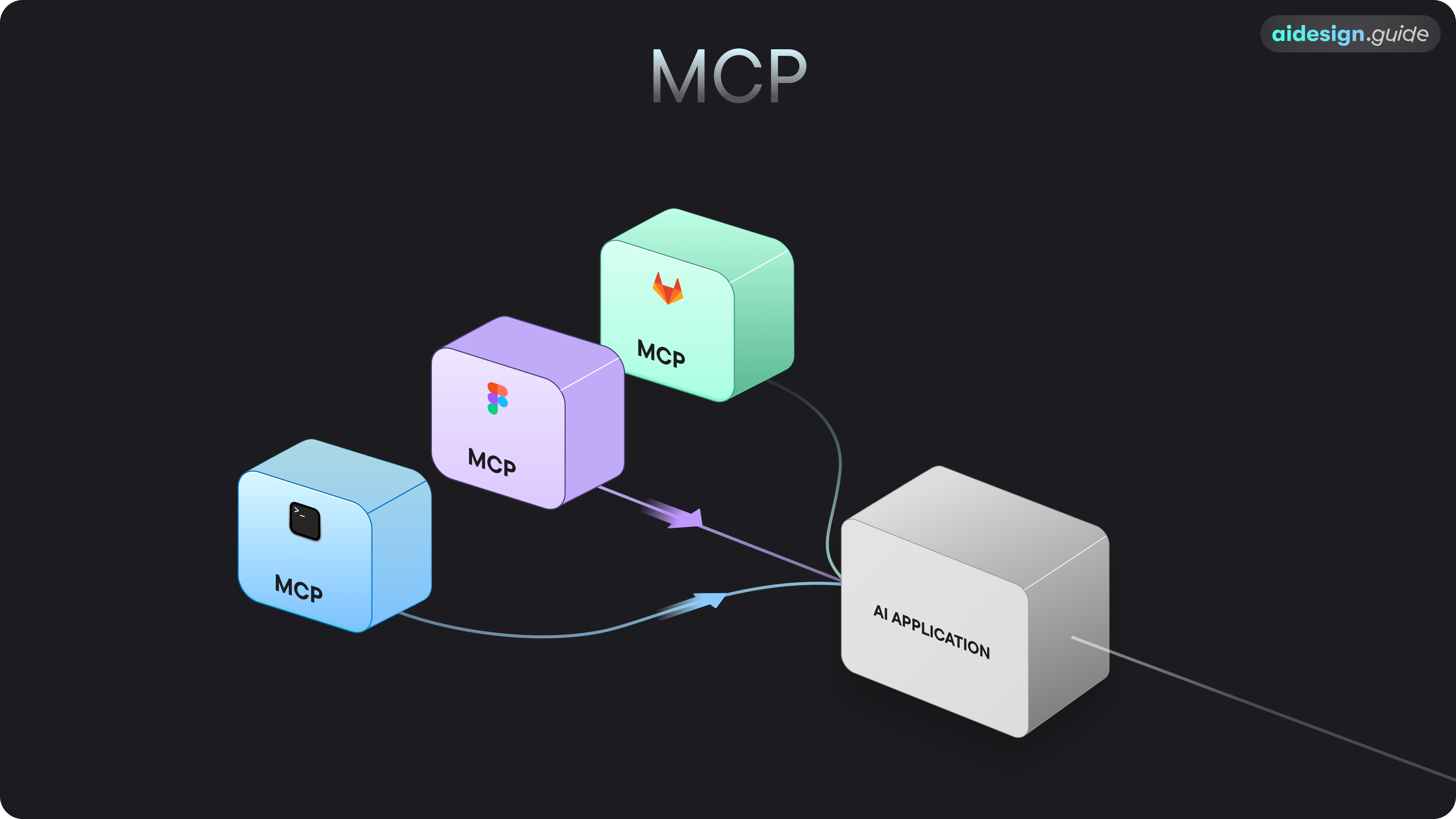
MCP is a protocol that enables AI-powered systems to connect to software applications in a standardized way. Before MCP, connecting an AI tool to an app required a custom, one-off integration. Now, an app like Figma can build a single MCP server, and any AI tool with an MCP client (like Cursor) can connect to it.
This two-way communication allows the AI to not only “see” your designs but also to access the underlying data—like design tokens, component properties, and styles. This rich context is invaluable for generating high-quality, production-ready code from your Figma files.
As Figma’s article on MCP explains, “The more context an AI assistant has, the better it’s able to understand the specific nuances of a request and deliver a high-quality output.” Source
For designers, MCP bridges the gap between design and development more effectively than ever before. Here are some of the key benefits:
::: note[Beta Availability] The Dev Mode MCP Server is in open beta.
Available on a Dev or Full seat on the Professional, Organization, or Enterprise plans.
You must use a code editor or application that supports MCP Servers (i.e. VS Code, Cursor, Windsurf, Claude Code).
You can only use the Dev Mode MCP server from the Figma desktop app. Download the Figma desktop app → :::
To connect to Figma’s MCP server, you’ll need a code editor or application that supports MCP clients. Here are some of the popular options:
Other code editors and tools that support SSE (Server-Sent Events) can also connect to the Dev Mode MCP server.
If you’re using a different editor or tool, check its documentation to confirm it supports SSE-based communication. If it does, you can manually add the Dev Mode MCP server using this configuration.
To get started, you need to enable the MCP server from the Figma desktop app.
You should see a confirmation message at the bottom of your screen indicating that the server is running locally at http://127.0.0.1:3845/sse.
Once the server is running, you can connect your MCP client. Below are the instructions for popular editors.
{ "mcpServers": { "Figma": { "url": "http://127.0.0.1:3845/sse" } }}[Instructions for Claude Code will go here]
⌘ ,)."chat.mcp.discovery.enabled": true,"mcp": { "servers": { "Figma Dev Mode MCP": { "type": "sse", "url": "http://127.0.0.1:3845/sse" } }},"chat.agent.enabled": true⌥⌘B or ⌃⌘I) and switch to Agent mode.MCP Server: Figma Dev Mode MCP.If you’re using a different editor that supports SSE (Server-Sent Events), you can manually add the Dev Mode MCP server using this configuration:
{ "mcpServers": { "Figma Dev Mode MCP": { "url": "http://127.0.0.1:3845/sse" } }}Check your editor’s documentation for the specific steps to add an SSE-compatible MCP server.
Once connected, you can prompt your client to access a design node in two ways:
To get the best results from the MCP server, follow these best practices.
Structure your Figma file:
CardContainer instead of Group 5).Clear prompts lead to better results. Be specific about your needs:
src/components/marketing/PricingCard.tsx.”More on effective prompting here 👇
Prompting for Designers Guide
For more detailed examples and a comprehensive list of prompts, check out our guide to prompting for designers.
Official Figma MCP Documentation
Read the official guide from Figma for detailed instructions and information.