Browser Automation for Design QA
Delegate the mechanical parts of design QA to an AI agent that drives a real browser. Token usage, contrast, dark mode, responsive, and focus state checks that run on every PR without you clicking through every page.
Design QA belongs to an agent
Design QA is mostly checklist work. Click through every page. Switch to dark mode. Resize the window. Scan for focus states. Catch the one hex value someone shipped instead of a token. By hour two, your eyes stop seeing what is on the screen.
That work belongs to an agent. An agent that opens a real browser, reads computed styles, and writes a report in the same shape you would have written it. Treat design QA the way developers treat unit tests: run it on every PR. Keep the judgment work. Hand off the checklist.
This guide covers the four tools worth knowing, when to pick which, and what the loop looks like end to end.
Three ways to automate design QA
Before the tools, the landscape. There are three real options today, and they sit on a spectrum.
- Manual click-through. Cheap, slow, error-prone. Scales badly. Does not run on PRs. The default for most teams, including ones that should know better.
- Visual regression tests with Playwright or Chromatic. Solid for component screenshots. Weak for “is the spacing wrong” judgment calls. Requires test code, which means a developer owns the loop, not a designer.
- AI agent in the browser. Reads pages, makes judgment calls, writes a report in plain language. No test code. Slower per page but covers the gap between pixel diffs and human review.
The existing guides on this site cover options one and two. This guide is about option three.
What “agent in the browser” actually means
The agent does not just read the page source. It opens a real browser session and:
- navigates to a URL
- takes a screenshot
- inspects the DOM
- reads computed styles
- compares them with your design tokens
- reports issues in plain language
That last step is what makes it different from a test runner. A test runner says “pixel diff: 0.3 percent.” An agent says “the secondary button on this page uses a primary token, which contradicts the design system rule.”
That is the line between automation and judgment. Automation tells you that something changed. An agent tells you whether the change is wrong.
The QA checklist that lends itself to automation
Not every QA item is worth automating. The wins are checks that are:
- mechanical (clear pass or fail)
- repetitive across pages
- prone to human fatigue
Strong candidates:
- token usage (raw hex vs token references in computed styles)
- contrast ratios on every text element
- dark mode token coverage (tokens that resolve to a light value in dark mode)
- responsive breakpoint behavior at 320, 768, 1024, 1440
- focus states visible on every interactive element
- empty state coverage across data-driven views
- copy consistency (sentence case, terminology drift)
- heading hierarchy (h1 once, no skipped levels)
Weaker candidates (let humans do these):
- emotional tone of copy
- whether an empty state is delightful
- whether an illustration fits the brand voice
- whether a flow feels confusing
The lesson here, and it is the same lesson as everywhere else with AI: pick the boring work first.
The tools you can use
There are four tools worth knowing right now. They overlap, they sit at different levels of abstraction, and they each have a clear “when to use this” story. I will go through them in the order I tried them, with the honest tradeoffs that came out of using each one.
1. Playwright (and Playwright MCP)
The workhorse, and the tool I reach for most of the time. Playwright is Microsoft’s browser automation framework, originally built for end-to-end testing. It drives Chrome, Firefox, and WebKit through a single API. Every other tool in this list either wraps it or borrows from it.
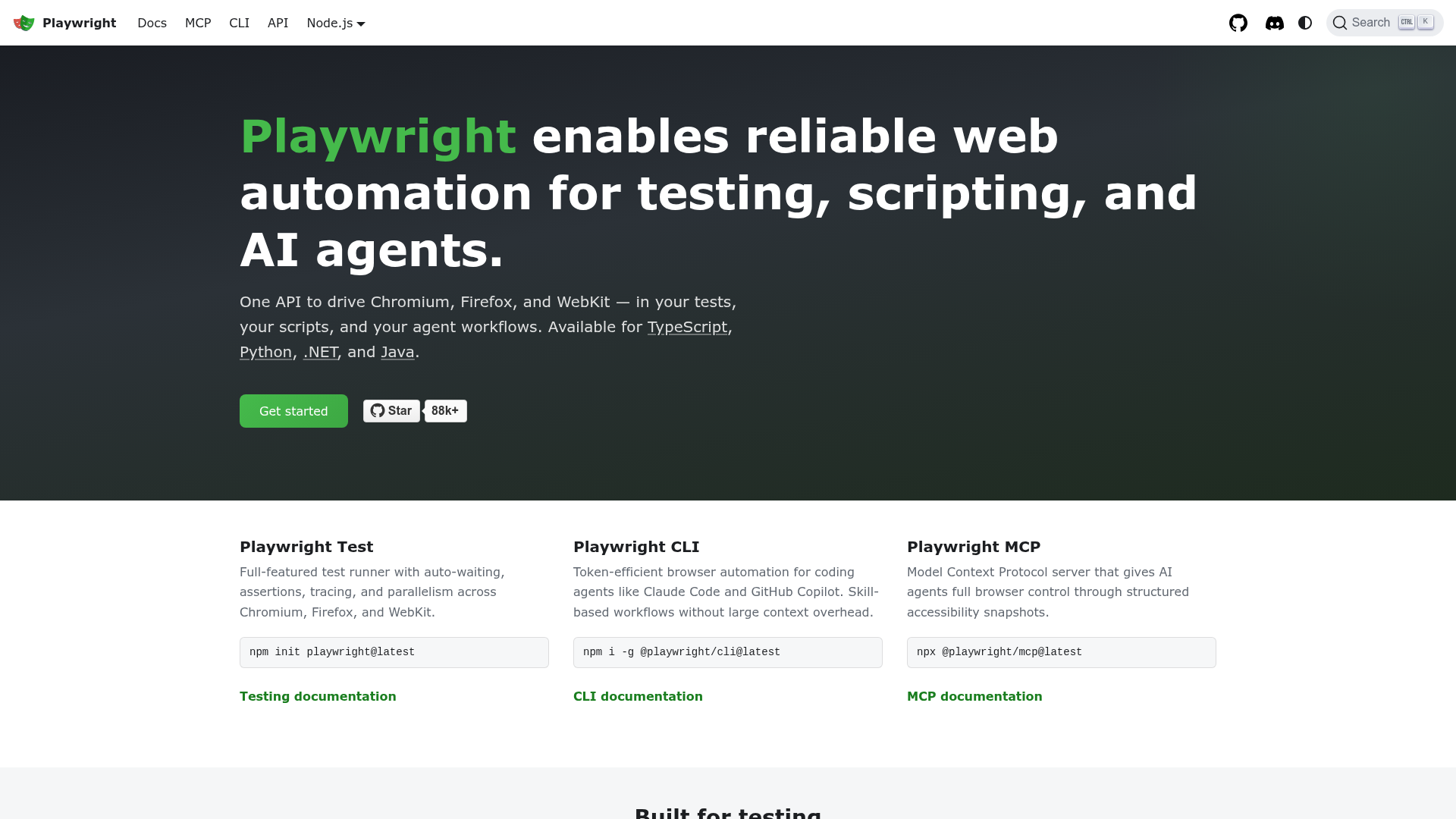
For design QA, you usually want Playwright MCP, the Model Context Protocol server that exposes Playwright to your AI tool. Once installed, Claude Code or Cursor can drive a browser directly, without you writing a test file.
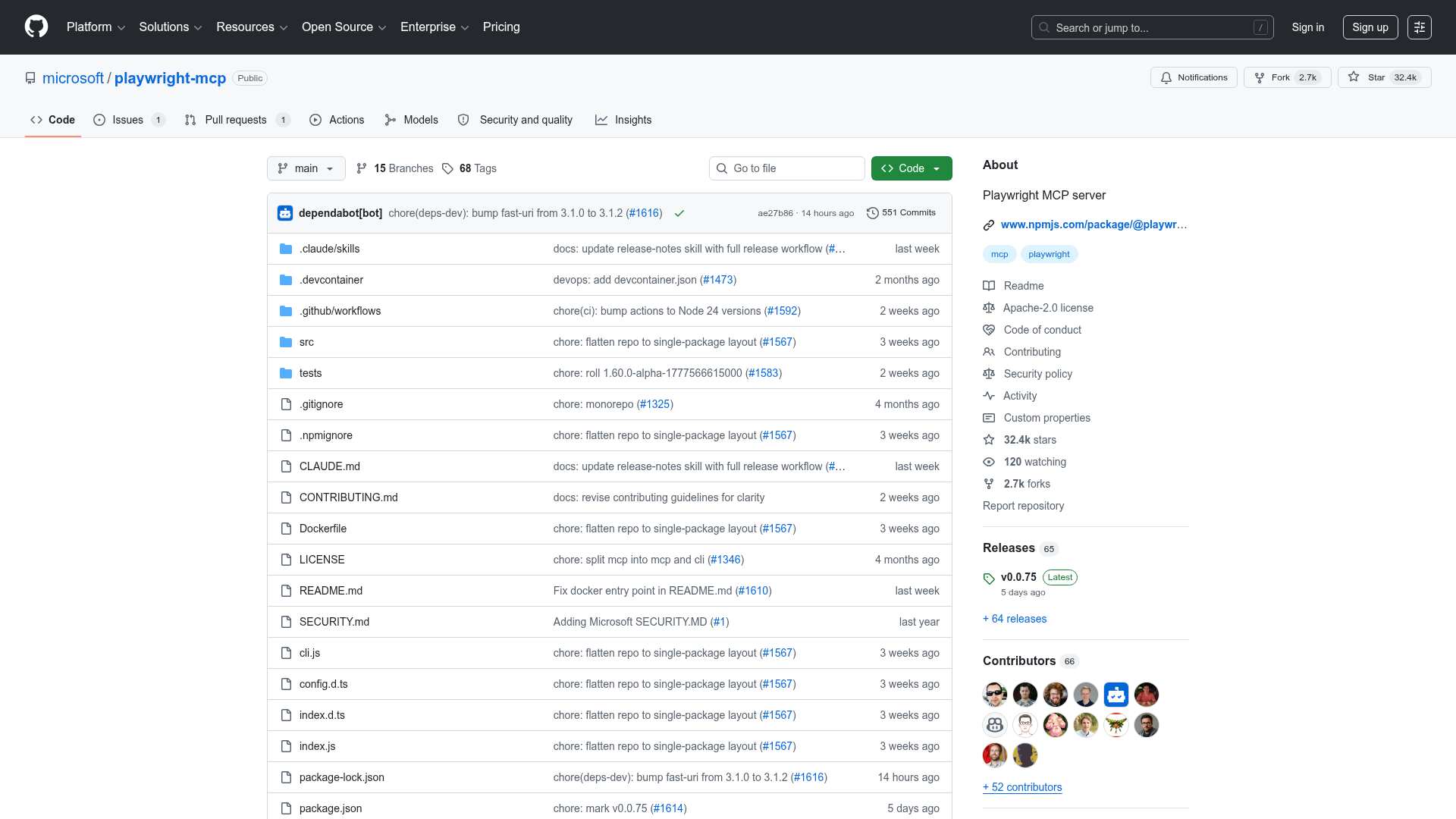
Pick it when:
- You are starting from scratch.
- You want the most stable option.
- Your engineering team already uses Playwright in CI (you can reuse selectors, fixtures, base URLs).
- You want headless runs on a CI server later.
Friction:
- The DOM-level inspection is fine, but accessibility-tree and computed-style introspection is shallower than Chrome DevTools MCP.
- The MCP install assumes Node.js. If you are working in a Python-only environment, look at browser-use.
2. Chrome DevTools MCP
The deep inspector. Built by the Chrome DevTools team. It exposes the same panels you get when you open DevTools manually (Elements, Network, Performance, Accessibility) and lets an agent query them programmatically.
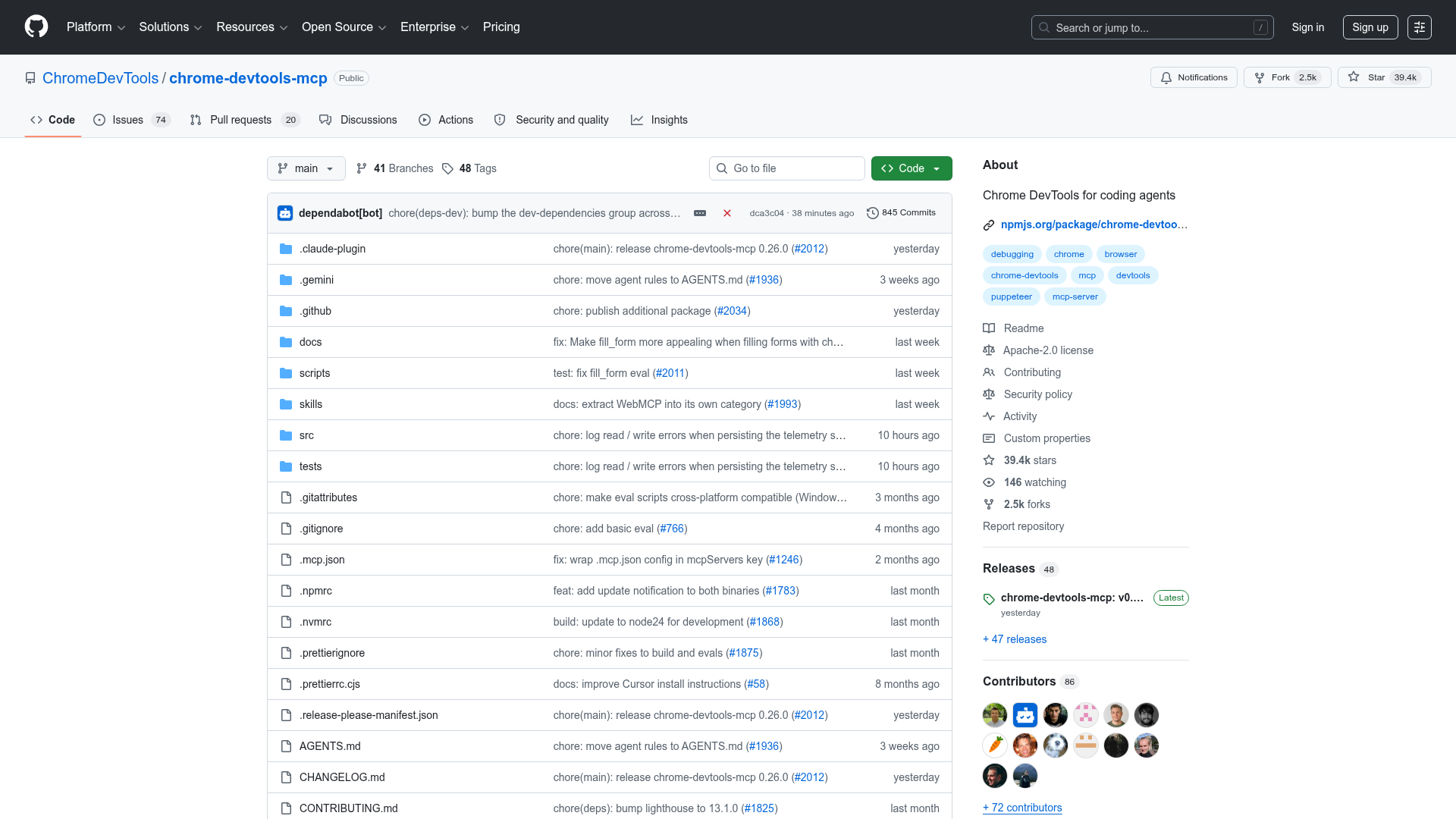
Pick it when:
- You want accessibility-tree inspection (focus order, ARIA roles, landmark structure).
- You need performance traces or Core Web Vitals as part of your QA report.
- You are doing audit-style work where you want every computed style on every element.
Friction:
- Chrome-only. No Firefox, no Safari. For a design system that needs cross-browser checks, you still want Playwright MCP as the primary tool.
- Newer and less battle-tested than Playwright MCP.
3. browser-use
The agent framework. Python-first. Designed for autonomous agents that browse the web, not just for QA. The closest thing to “give the AI a task in plain English and let it figure out which buttons to click.”
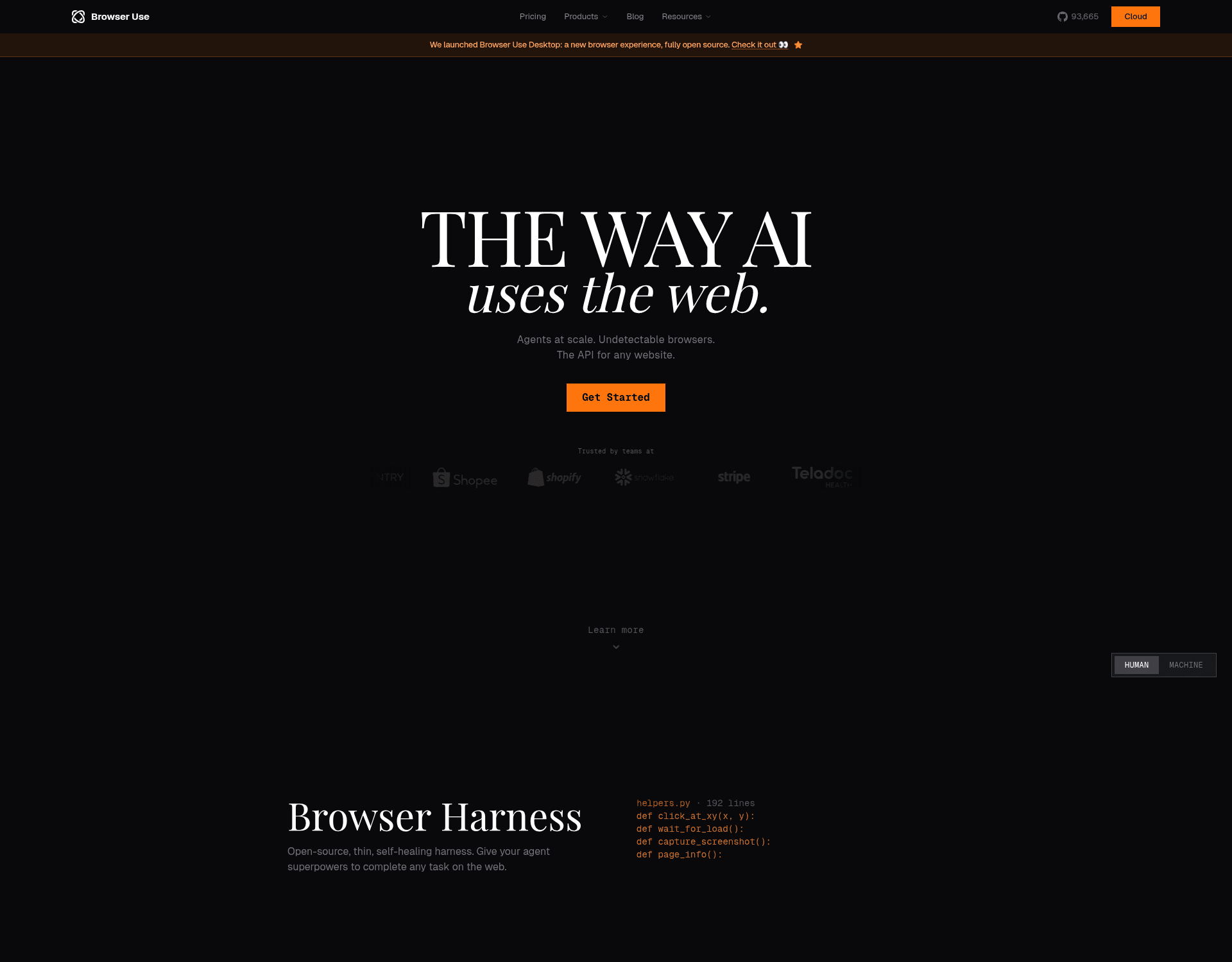
Pick it when:
- You work in Python and want the agent loop in the same language as the rest of your stack.
- You want a high-level “go check the dashboard for layout issues” prompt to actually work, without writing detailed step instructions.
- You need to run the agent against many different sites or many different flows.
Friction:
- More expensive per run than Playwright MCP, because the agent is doing more reasoning per step.
- The autonomy is the feature and the bug. For a tight, repeatable QA checklist, you want less autonomy, not more.
4. Stagehand
The developer-friendly wrapper. Built by Browserbase. Sits on top of Playwright but lets you mix natural-language instructions (“click the primary button”) with code (“expect the URL to contain /dashboard”).
Pick it when:
- You want to write your QA scripts in TypeScript and have them read like documentation.
- You like the idea of Playwright but find the raw API verbose.
- Your team is already on Browserbase for cloud browser sessions.
Friction:
- It is a hosted-leaning ecosystem. You can self-host, but the documentation pushes you toward Browserbase cloud.
- One more layer of abstraction means one more thing to debug when something goes wrong.
When to pick which
If you remember one rule from this section, make it this: start with Playwright MCP, then add another tool only when you hit a wall.
A blunter version, in table form:
| If you… | Pick |
|---|---|
| Are starting from zero | Playwright MCP |
| Need accessibility tree, perf traces, deep DOM intro | Chrome DevTools MCP |
| Work in Python and want maximum agent autonomy | browser-use |
| Want TypeScript scripts that read like prose | Stagehand |
| Need to QA across Chrome, Firefox, Safari | Playwright MCP (the others are Chrome-first) |
I run Playwright MCP for 90 percent of my QA work and reach for Chrome DevTools MCP only when I need a real accessibility tree.
A minimal checklist file
Once your tool is wired up, you point the agent at a checklist and a target URL. The checklist is just a markdown file. The agent reads it as instructions, not as code.
# Design QA checklist

For each page:

1. Read every text element. Flag any computed color that is not a token reference.
2. Check contrast ratio for every text element against its background. Flag anything under 4.5:1.
3. Toggle dark mode. Flag any element where the computed color resolves to a light value.
4. Resize to 320, 768, 1024, 1440. Flag layout breaks or overlapping elements.
5. Tab through every interactive element. Flag any element without a visible focus state.
That is the whole input. The agent does the rest.
Example: a PR preview review
Conceptually:
PR opens
  -> Vercel deploys a preview URL
  -> agent receives the URL and the checklist
  -> agent walks the pages
  -> agent writes a markdown report with screenshots
  -> report gets posted as a PR comment
The report looks like something a designer would have written:
# Design QA report for PR #482

## Issues

- /pricing: secondary CTA uses `color/button/primary` instead of `color/button/secondary`
- /settings: focus ring missing on the API key input
- /dashboard (dark mode): chart axis label resolves to `#111`, fails 4.5:1 contrast

## No issues found

- Token coverage on /home and /docs
- Responsive behavior at all breakpoints
- Heading hierarchy across all reviewed pages
The agent does not approve the PR. It writes a report. A human still decides what to fix.
What can go wrong
The first time you run an agent against a real product, it will fail in five specific ways. None of them are exotic. All of them are recoverable. Knowing them in advance saves you a week of wondering why the reports look wrong.
The agent clicks the wrong duplicate button. Pages with two CTAs that say “Submit” trip an agent that’s working off the accessibility tree alone. I’ve watched Playwright MCP pick the footer Submit when the checklist meant the form Submit. The fix is to scope every checklist step to a region or a parent element. Don’t say “click Submit.” Say “in the pricing form, click Submit.”
The logged-in state is missing. Most design QA checklists run against authenticated pages. The agent opens a fresh browser, hits the URL, and gets the login screen. The output is a beautifully formatted report about your login page. Fix: pass a storage state file with the session cookie, or hand the agent a script that logs in first.
Token checks fail because CSS variables resolve to hex. The agent reads computed style and sees rgb(17, 17, 17) instead of var(--color-text-primary). It looks like a raw color. It’s not. The check needs to walk back from computed style to the CSS custom property name, which means reading the rules cascade, not just the resolved values. Without that, every page fails the token check.
Screenshots pass but focus states fail. Static screenshots can’t catch a missing focus ring because focus is a runtime state. The agent needs to tab through interactive elements and screenshot after focus, not before. If your checklist only takes one screenshot per page, you’ll get false passes on focus.
The agent reports preferences as facts. Sonnet will tell you the spacing on a card is “too tight” if you ask. That’s not a QA finding. That’s the model offering an opinion. Be explicit in the checklist: report only on rules that have a documented spec. If a spacing token allows 16 or 24, flag deviations from those values, not the agent’s vibe.
What stays human
This is the section everyone skips, and it is the most important one.
The agent is good at:
- mechanical pass or fail checks
- repetition across pages
- reading computed styles
- comparing against documented rules
The agent is bad at:
- judging whether a layout feels right
- noticing that a page is technically correct but emotionally wrong
- catching the case where the system is consistent and the design is still bad
The agent will tell you the contrast is fine. It will not tell you the page is forgettable. Use it to clear the bottom of the checklist. Use your time for the top.
What this costs to run
The browser compute is essentially free. The cost is the agent doing the reasoning. For a 20-item checklist across 10 pages on every PR, the numbers land like this:
| Model | Per PR review | 20 PRs / week | Monthly (~80 PRs) |
|---|---|---|---|
| Claude Sonnet 4.6 | $0.40 – $0.60 | $8 – $12 | $32 – $48 |
| Claude Haiku 4.5 | $0.10 – $0.15 | $2 – $3 | $8 – $12 |
| Gemini 2.5 Flash | $0.05 – $0.08 | $1 – $1.60 | $4 – $7 |
| Browser session compute | free – $0.05 | up to $1 | up to $4 |
The interesting comparison is not the cost between models. It is the alternative: one designer hour at any reasonable rate already costs more than a year of agent-driven QA on Sonnet, and several years of it on Haiku.
Where to start
Pick one check. Token usage is a good starter because it is mechanical and high-signal. Install Playwright MCP, point it at one page, ask the agent to flag every computed color that does not match a token. When that single check is reliable, add the next one.
The point is not to replace your design QA. It is to clear the boring 80 percent so you can spend your eye on the 20 percent that actually needs it.
Finished this lesson?
Mark it complete to track your progress through "Automation for DS Teams".
The guides alone saved me a full day of work every sprint.
- All guides, prompts, and templates
- Starter kits and templates
- New content every week
- Priority support