Claude Code: App vs Extension vs Terminal (Which One to Use When)
Claude Code comes in three flavors: a web/desktop app, a VS Code or Cursor extension, and a terminal CLI. Each one is designed for a different moment in your day. Here is which to pick.
The short version
The same Claude Code comes in three shapes, and they are not interchangeable. I use all three, most days.
- APP
Browser or desktop
- EXT
VS Code or Cursor
- CLI
Claude Code Terminal
- App (Claude Desktop or claude.ai/code), no install, works anywhere. Best for questions and lightweight tasks.
- Extension (VS Code or Cursor plugin), lives inside your editor. Easiest to use while actively editing one or two files. Shows diffs, lets you accept or reject changes line by line.
- Terminal (Claude Code CLI), the most powerful version. Lowest latency. Runs autonomously. Best for audits, migrations, or multi-file work while you do something else.
Pick wrong and you will either fight the tool (writing a 20-file audit in the chat window) or underuse it (booting up the terminal to answer one question).
The one-glance decision table
| Task | Use |
|---|---|
| Ask a question about a concept | App |
| Review one file I pasted in | App |
| Generate 10 naming variations | App |
| Edit code with visual diff review | Extension |
| Build a component with the AI as pair | Extension |
| Refactor a function I have open | Extension |
| Audit every token in a folder | Terminal |
| Generate docs for 40 components | Terminal |
| Run a custom skill I wrote | Terminal |
| Work on a folder of non-code files (tokens JSON, markdown) | Terminal |
| Let Claude run while I do something else | Terminal |
Rule of thumb: App for questions, Extension for actively editing one or two files, Terminal for many files or while you do something else.
1. Claude App (web or desktop)
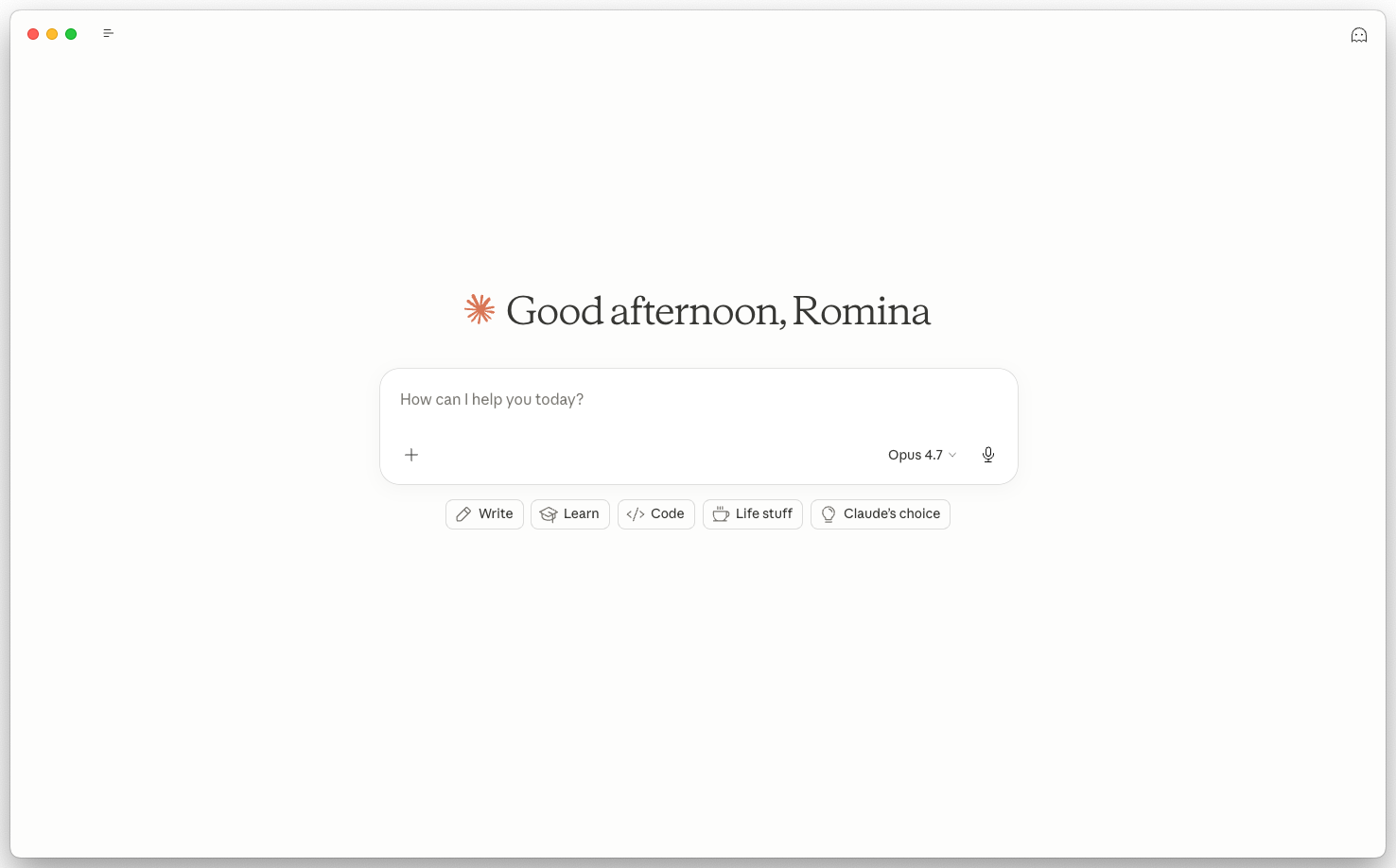
The App is claude.ai in your browser, or the Claude Desktop app. Both are the same product. You type, Claude replies.
When to use it
- You have a question and want a fast, well-written answer
- You want to review a single document or image by pasting it in
- You are exploring an idea before you commit to building something
- You do not have Claude Code installed yet
- You want to use Claude alongside other AI tools casually
When NOT to use it
- You need to work with actual project files (App cannot read your folder)
- You need output saved back to disk
- The task involves more than 3 files
What makes it unique
- Zero setup. Sign in and start.
- Artifacts. Interactive output inside the chat (charts, components, small apps).
- Projects. Persistent context across chats. Upload a set of files once, ask about them across multiple conversations.
Example task
Explain how Style Dictionary transforms JSON into CSS. Use an analogy I can share with my team.Get an answer in 30 seconds. Save to your notes. Done.
2. Claude Code Extension (VS Code / Cursor)
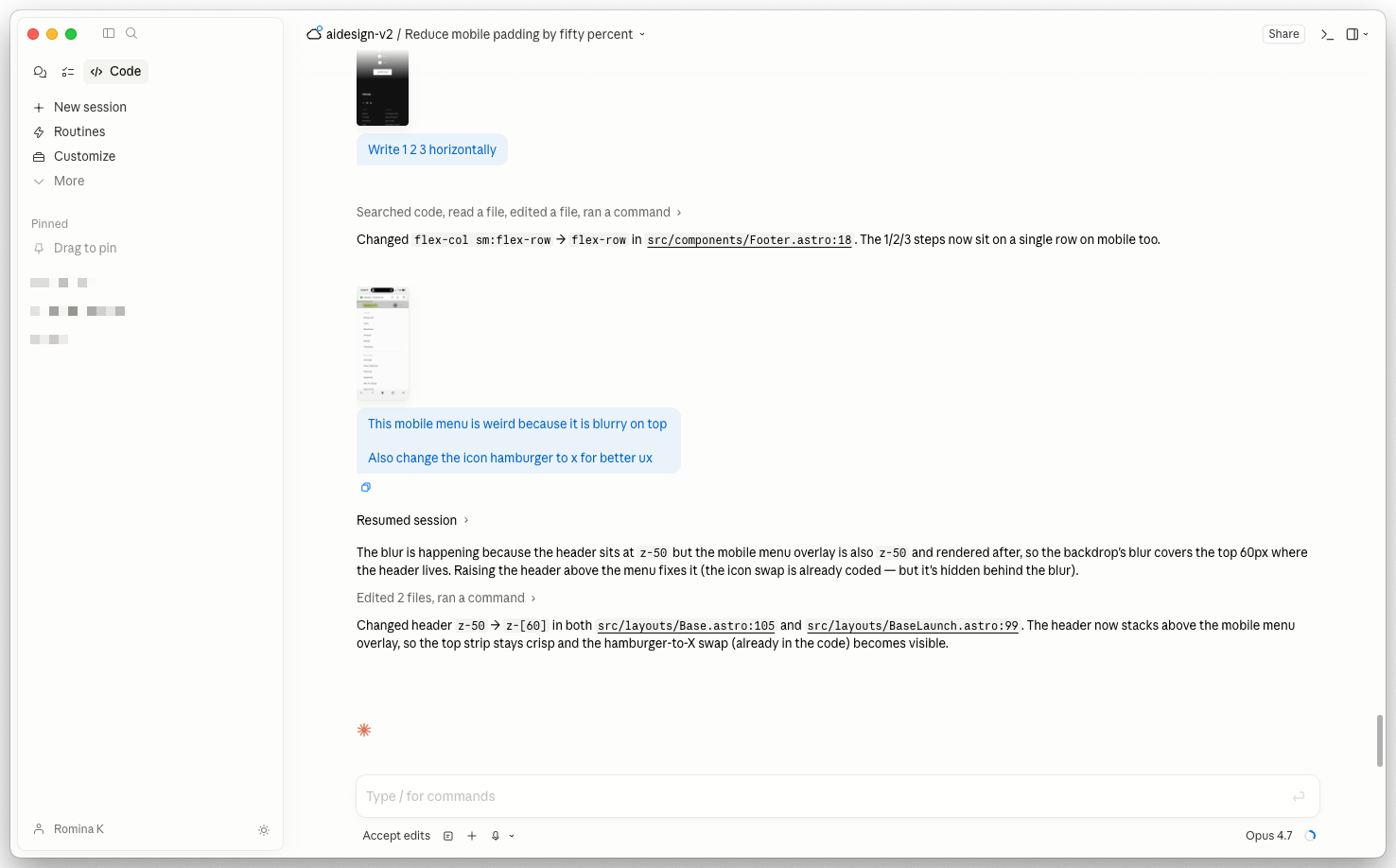
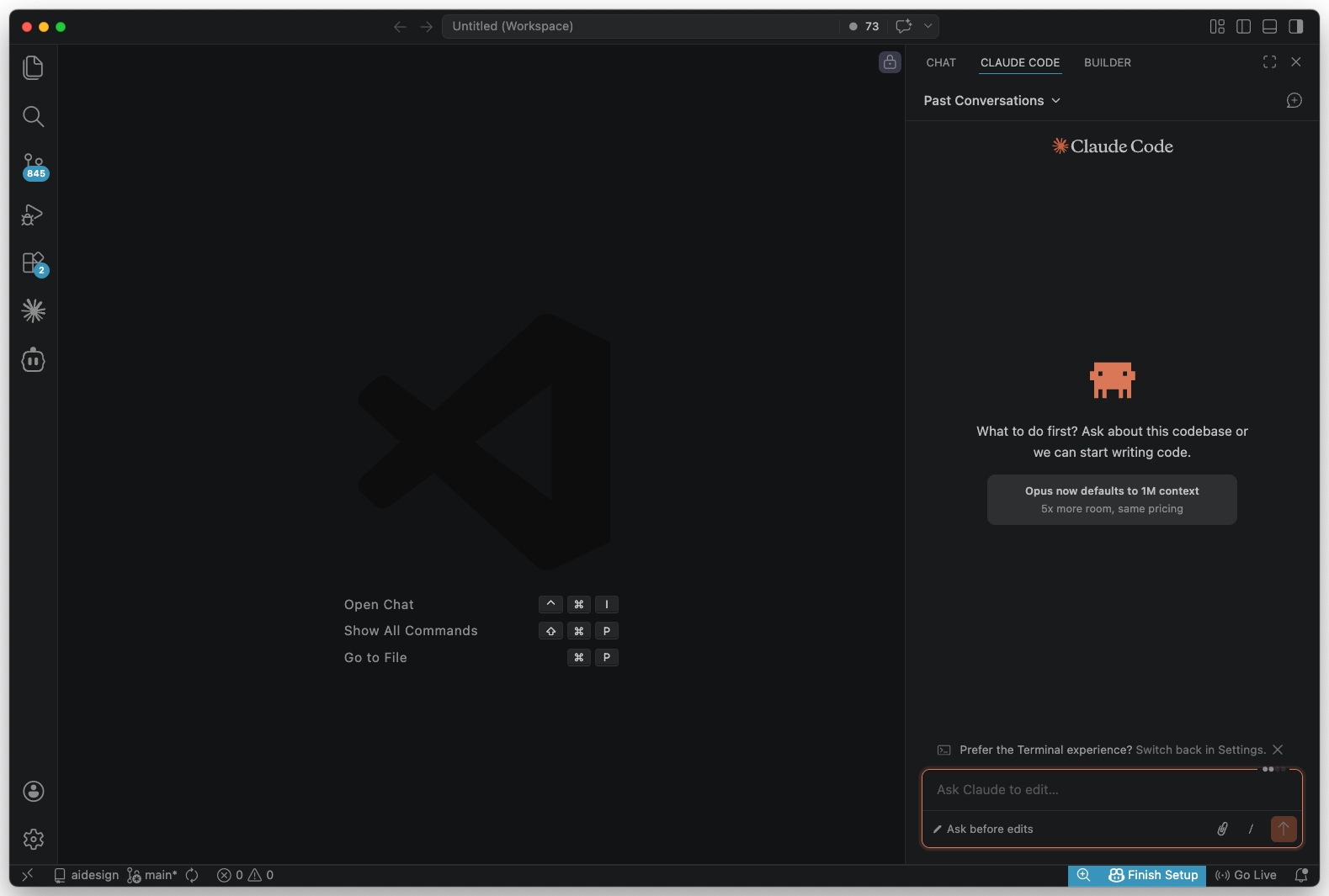
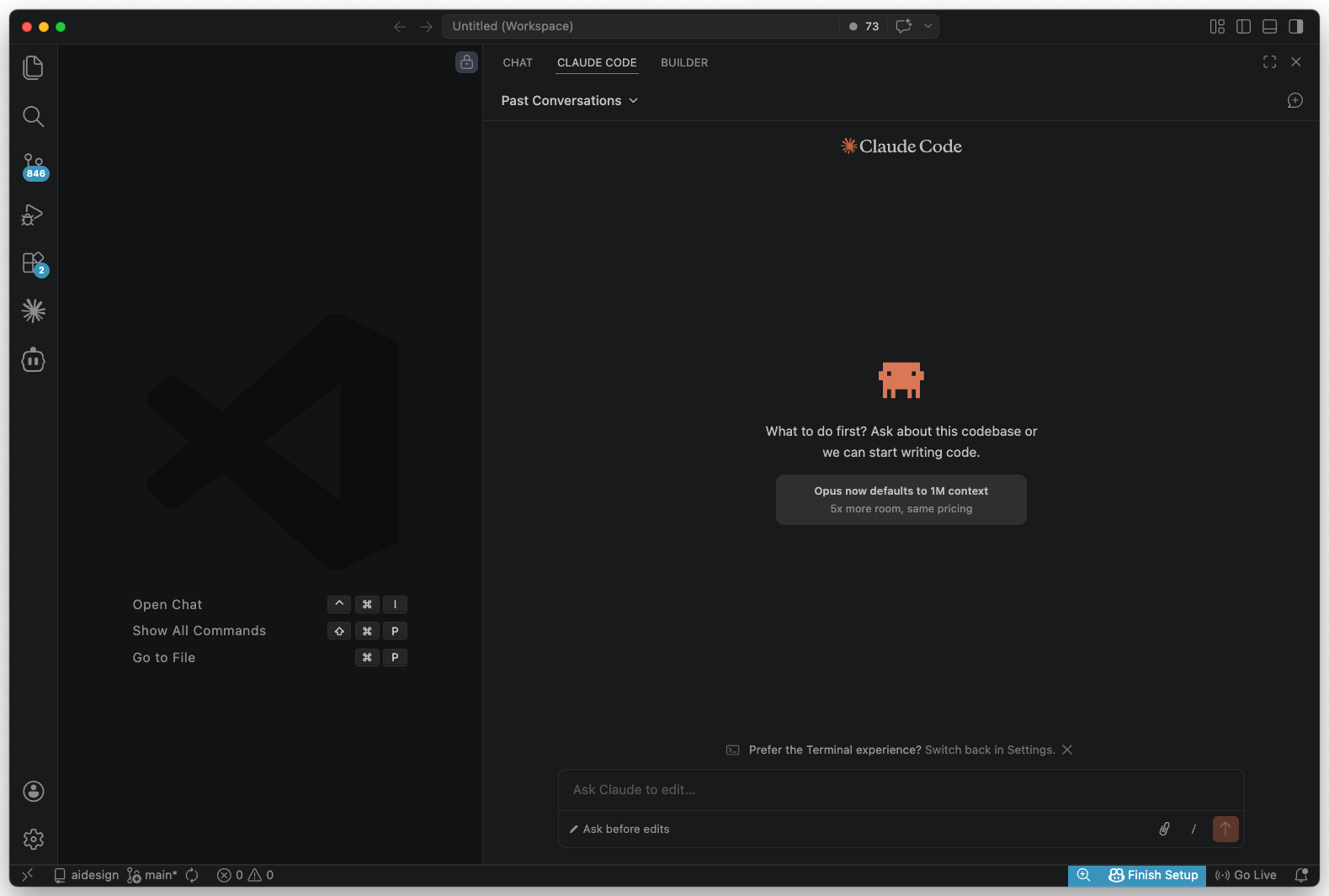
The Extension puts Claude Code directly inside your editor. You see every change as a diff before accepting it. You can chat in a side panel while editing in the main panel.
There are two flavors:
- VS Code with the Claude Code extension (lightweight, official)
- Cursor, built around AI with Claude Code as the underlying model. Same feel, different IDE.
When to use it
- You are actively editing code and want AI as a pair programmer
- You want to see exactly what changes before accepting them
- You need to refactor a function, fix a bug, or add a feature to an open file
- You like keyboard shortcuts and inline suggestions
- You want to use AI with your existing editor setup
When NOT to use it
- The task runs across many files (Terminal is faster for multi-file work)
- You want Claude to run autonomously while you do something else
- You are working on non-code content like design tokens in JSON (works, but Terminal is cleaner)
What makes it unique
- Visual diffs. Every change shows up as red/green before you accept it.
- Inline suggestions. Highlight a line, ask Claude to fix it, see the edit in context.
- Tab completion. Claude suggests the next few lines as you type (Cursor especially).
Example task
I'm looking at Button.tsx. Add a loading state with a spinner and disable the button during loading. Keep the existing variants.Claude edits the file in place. You see the diff. Accept what you like, reject what you do not. No context switching.
3. Claude Code in the Terminal
The Terminal is the Claude Code CLI. You cd into a folder, run claude, and start giving instructions. Claude reads, writes, and modifies files autonomously.
This is the most powerful of the three, and the most demanding. Designers find this one scary at first. It stops being scary once you use it for one real task.
When to use it
- The task spans many files (audits, migrations, documentation generation)
- You need output saved to disk as reports or configuration
- You want to run Claude Code skills you have written
- You are not actively editing and want Claude to run while you work on something else
- You need to use the full power of Claude Code (multi-file context, skills, subagents)
When NOT to use it
- You just want a quick answer (App is faster)
- You are actively editing one file (Extension is better)
- You have never used a terminal before and need zero setup (start with App, come here when you are ready)
What makes it unique
- Multi-file autonomy. Reads your whole folder, modifies multiple files in one task.
- Skills. Install reusable playbooks that you trigger with
/skill-name. - CLAUDE.md. Load project-specific context on demand, not repeated every message.
- Subagents. Parallel workstreams for complex jobs.
Example task
Audit every token in tokens/ and output a markdown report of naming convention violations. Group issues by severity.Claude reads every file, applies your rules, writes reports/token-audit.md. One command. This would take hours in the App or Extension.
The side-by-side comparison
| Criterion | App Questions, exploration | Extension Active editing | Terminal Autonomous, multi-file |
|---|---|---|---|
| Setup time | 0 min | 5 min | 5 min |
| Where it runs | Browser or desktop | VS Code / Cursor | Your terminal |
| Reads project files | Paste only | Current editor | Whole folder |
| Writes to disk | — | With diff approval | Autonomously |
| Visual diffs | — | ✓ | Text only |
| Response speed | Normal | Normal | Fastest |
| Active editing one or two files | Limited | Best | Okay |
| Multi-file tasks | Painful | Okay | Best |
| Skills support | — | — | ✓ |
| Runs while you AFK | — | — | ✓ |
The most common mistakes I see
- Using the App for multi-file tasks. “Let me paste this component file… and this one… and this one…” Stop. Open the Terminal.
- Using the Terminal for simple questions. Spinning up a terminal session to answer “what does X mean?” is overkill. Use the App.
- Using the Extension without tracking diffs. The whole point is visual review. If you accept everything blindly, you are just using a slow Terminal.
- Installing Cursor when you already use VS Code. You do not need both. Pick the IDE you prefer and add the Claude Code extension to that one.
The 30-second decision rule
When Claude is about to help, ask yourself:
- Am I just asking a question? → App
- Am I actively editing one or two files? → Extension
- Does the task need to touch many files or run while I do something else? → Terminal
If more than one applies, pick the one that dominates. You can always switch tools mid-task.
Run the same task in all three surfaces and compare
-
Pick one design-system task
Pick something small and real: rename a token across a folder, write a one-paragraph description for a component, or list every hardcoded hex in a file. Write the task in one sentence on a scratch pad so you can paste the same prompt into each surface.
- The task is specific enough that a stranger could run it without follow-up questions
- The task touches more than one file, so the surfaces actually behave differently
- You can predict which surface will feel best before you run it
-
Run it in App, Extension, and Terminal
Open Claude in the browser or desktop app. Paste the task. Save the output. Open VS Code or Cursor with the Claude Code extension, run the same task on the open file, save the diff. Open the terminal,
cdinto the folder, runclaude, paste the same task, save the result. Then write one sentence per surface about what it felt like.- You have three saved outputs (a text note, a diff, a terminal log or a written file)
- Your one-sentence summaries match at least one claim from the decision table in this guide
- You can name the surface you reached for first next time, and why
Finished this lesson?
Mark it complete to track your progress through "Claude Code".
The guides alone saved me a full day of work every sprint.
- All guides, prompts, and templates
- Starter kits and templates
- New content every week
- Priority support