Set Up Figma MCP for Design-to-Code
Complete guide to configuring the Figma MCP server with Cursor and Claude Desktop. Connect your designs directly to your AI coding tools.
- Node.js 18+
- Figma account
- Cursor or Claude Desktop
Watch the Walkthrough
What You’ll Set Up
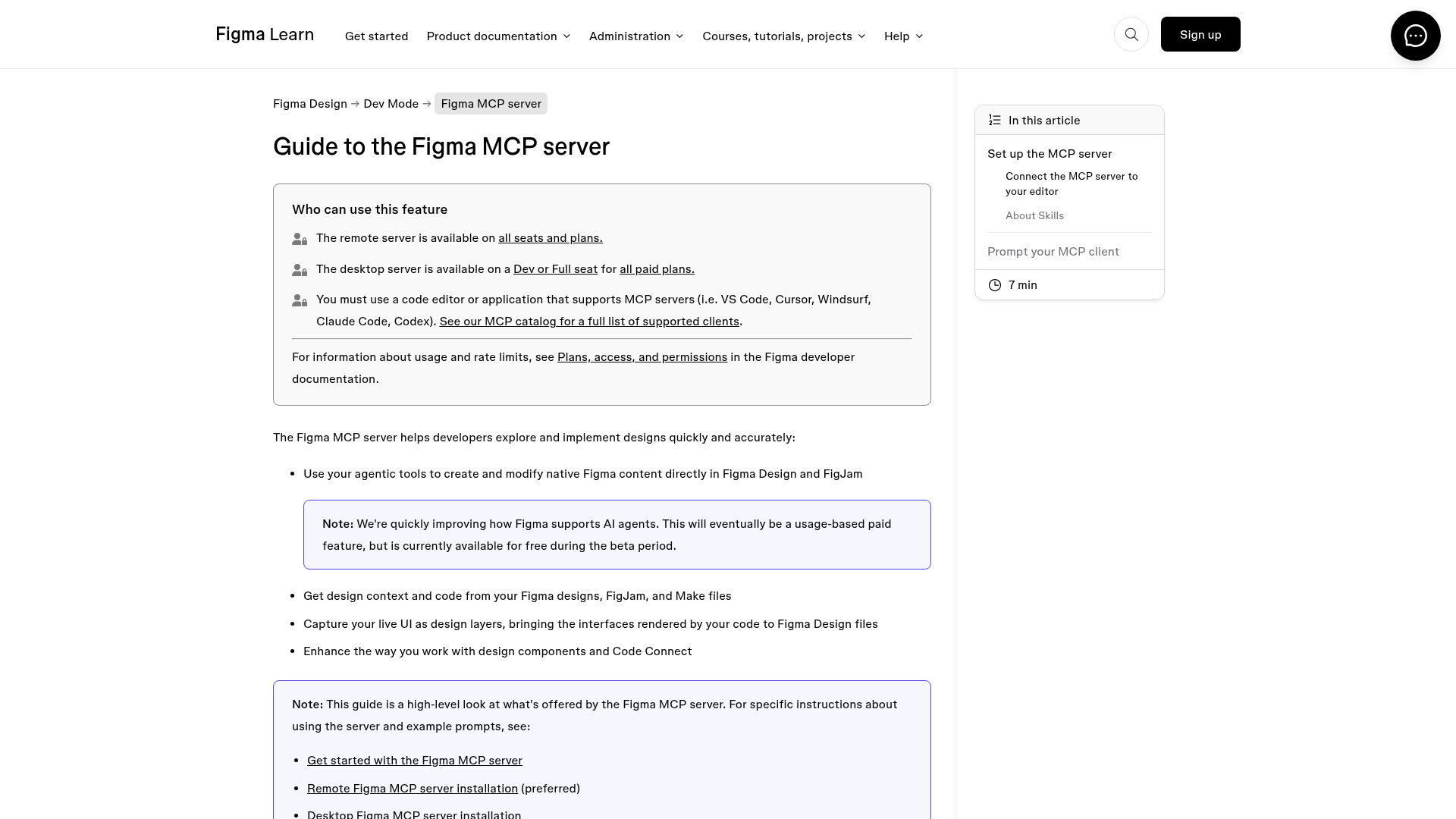
By the end of this guide, your AI editor will be able to:
- Read any Figma file directly
- Extract component specifications
- Access design tokens and variables
- Generate code that matches your designs
Prerequisites
- Node.js 18 or higher
- A Figma account with a Personal Access Token
- Cursor or Claude Desktop installed
Step 1: Generate a Figma Access Token
- Go to Figma > Account Settings
- Scroll to “Personal Access Tokens”
- Click “Generate new token”
- Copy the token (you won’t see it again)
Step 2: Install the MCP Server
npm install -g @anthropic/figma-mcpStep 3: Configure Your Editor
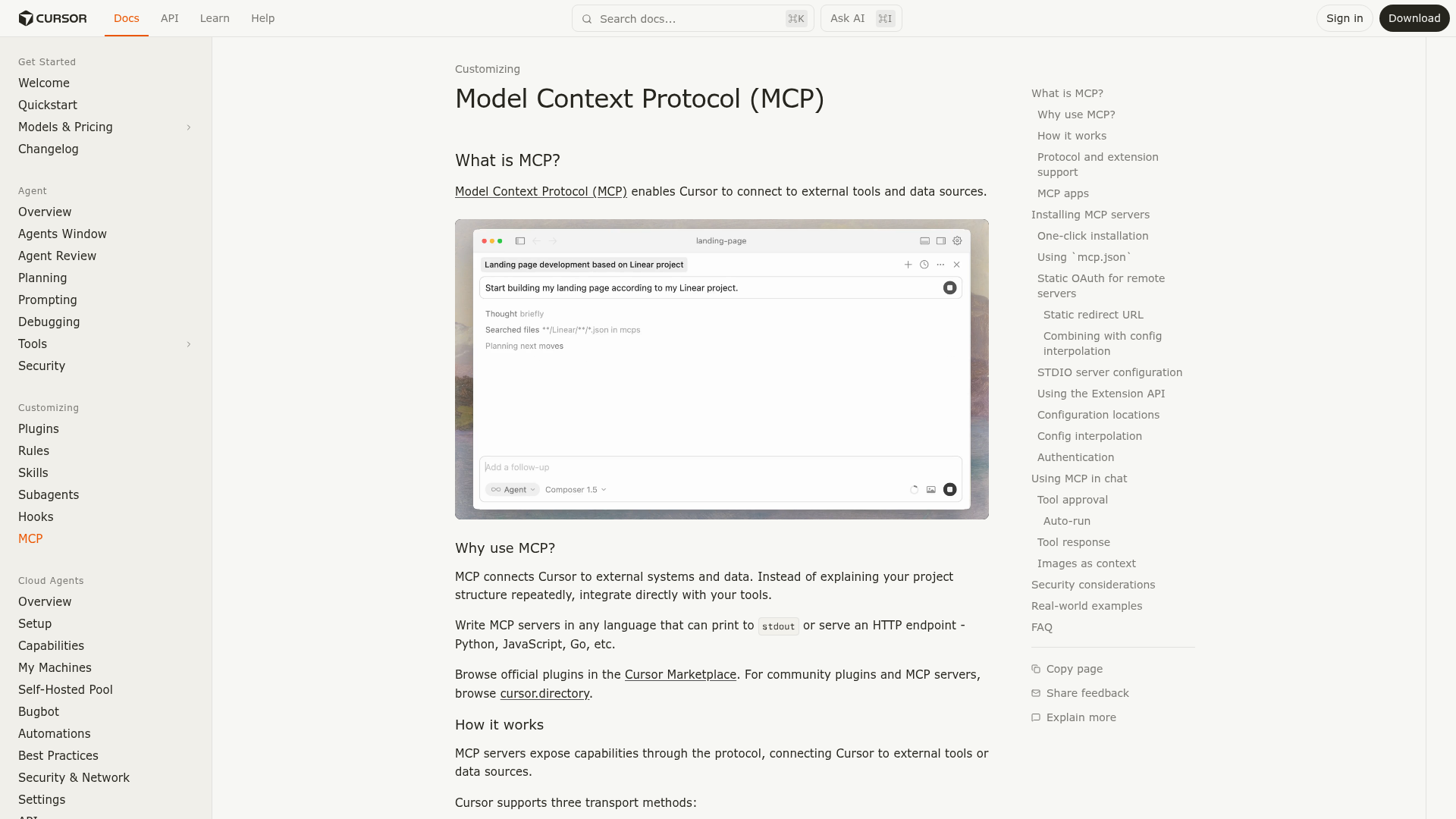
Both Cursor and Claude Desktop read a JSON file that tells them which MCP servers to spin up. Cursor’s docs show the same structure used below:
For Cursor
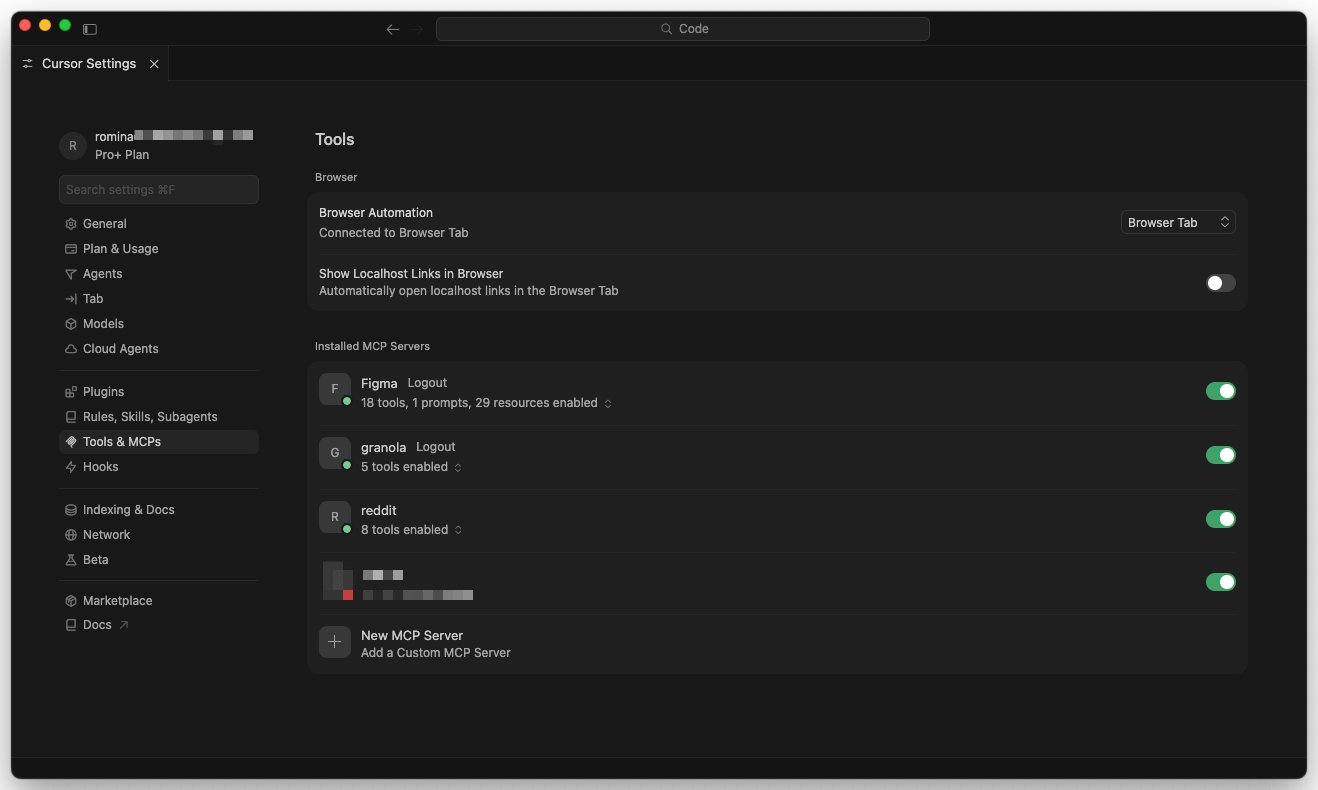
Open Cursor’s settings (Cmd + , on Mac) and go to the MCP & Integrations tab. You can either paste JSON directly, or click the plus icon to add a server through the UI.
Add to .cursor/mcp.json:
{
  "mcpServers": {
    "figma": {
      "command": "figma-mcp",
      "env": {
        "FIGMA_ACCESS_TOKEN": "your-token"
      }
    }
  }
}
After saving, the server should appear in the MCP & Integrations panel with a green status dot. If it doesn’t, restart Cursor.
For Claude Desktop
Add to ~/Library/Application Support/Claude/claude_desktop_config.json (macOS):
{
  "mcpServers": {
    "figma": {
      "command": "figma-mcp",
      "env": {
        "FIGMA_ACCESS_TOKEN": "your-token"
      }
    }
  }
}
Step 4: Verify the Connection
Open your editor and ask the AI:
Can you see my Figma files? List the most recent ones.If configured correctly, it will list your Figma files.
Troubleshooting
- “Server not found”. Make sure the npm global bin is in your PATH
- “401 Unauthorized”. Check your Figma access token is valid
- “Rate limited”. Figma API has rate limits. Wait a minute and try again
Connect Figma MCP and verify it reads a real file
-
Install the server and paste your token into the config
Generate a Figma Personal Access Token. Install the MCP server globally. Open
.cursor/mcp.json(Cursor) or~/Library/Application Support/Claude/claude_desktop_config.json(Claude Desktop) and paste the exact JSON from this guide. Replaceyour-tokenwith the token you just generated. Save the file.- The MCP config file exists at the right path for your editor
- The
FIGMA_ACCESS_TOKENenv value is your real token, not the placeholder - Restarting the editor shows the Figma MCP server listed as connected
-
Ask the AI to list your recent Figma files
In your AI chat panel, prompt: “Can you see my Figma files? List the most recent ones with their names.” The response should be real filenames from your account, not a hallucinated list.
- The AI returns names of files you actually own or can access
- No “401 Unauthorized” or “server not found” errors in the response
- You can follow up with “Show me the components in [filename]” and get a real list back
Finished this lesson?
Mark it complete to track your progress through "Agentic Design Systems".
Try with Prompts
Ready-to-use prompts related to this guide
Prompts for generating components from Figma with MCP and documenting implementation.
A prefill technique that makes Claude return parseable JSON tokens with no preamble, no apology, and no markdown wrapper. Drop-in pattern for token extraction pipelines.
Translate brand guidelines (PDF, style guide) into a structured set of design tokens with proper naming and hierarchy.